Add Shared Inbox to Outlook: New, Classic, Web, Mac, Mobile
On this page

Here is the short answer if you need to add shared inbox to Outlook for your team: your Microsoft 365 admin first creates a shared mailbox and gives you Full Access to it. Then you close and restart Outlook, and in most cases the mailbox appears in your folder list on its own. If it does not, you add it by hand: in new Outlook, right-click your account name and choose Add shared folder or mailbox; in classic Outlook, go to File > Account Settings > Change > More Settings > Advanced > Add.
That is the short version. The rest of this guide covers the admin side, the exact clicks for every Outlook version (new and classic for Windows, web, Mac, iPhone and Android), the permission that controls sending, and the fixes for the four problems that cause most "it's not showing up" tickets. Every step below comes from Microsoft's own documentation, checked on October 25, 2026, and linked in the Sources section.
One disclosure: we build Kora Reply, a help desk for small teams. A shared mailbox is often the right tool, and we say so below. We also explain where it stops being enough.
What a shared inbox in Outlook actually is
In Microsoft 365, a "shared inbox" is a shared mailbox: one address such as support@ or info@ that several people can read and send from. Microsoft lists support addresses, company information addresses and reception desks as the typical uses. When a member replies, the customer sees the shared address, not the person's own email. A shared mailbox also comes with a shared calendar.
A few facts decide whether it fits your team, so it pays to know them before anyone clicks "Add":
- No license for the mailbox itself, up to 50 GB. According to Microsoft's shared mailbox overview, a shared mailbox stores up to 50 GB without a license. Everyone who opens it does need their own licensed Exchange Online mailbox.
- A maximum of 25 users. Microsoft says that beyond 25, people may hit connection failures or duplicated messages.
- Internal people only. You cannot give a Gmail user or any outside account access.
- Nobody signs in to it directly. The shared mailbox has a user account with a system-generated password, and sign-in is blocked by default. You reach it through your own account.
- You cannot stop members from deleting messages. Anyone with access can delete anything.
Note the plan requirement too: you need a Microsoft 365 business plan that includes Exchange Online email. Microsoft points out that Microsoft 365 Apps for business does not include email, while Business Standard does.
Shared mailbox vs Microsoft 365 group
Microsoft offers a second option that looks similar: a Microsoft 365 group, which also gives members a group address and a shared calendar. The difference matters more than the names suggest.
| Shared mailbox | Microsoft 365 group | |
|---|---|---|
| Best for | A support or info address several people answer from | Collaboration with conversations, files, Planner and Teams |
| People outside your company | Not allowed | Allowed if your admin enables it |
| User limit | 25 users | Microsoft suggests a group when you need more than 25 |
| Deleting messages | Cannot be restricted | Microsoft suggests a group when you need to restrict deletion |
Source: About shared mailboxes and Compare types of groups in Microsoft 365.
Our take: for a customer-facing address where replies must come from "Support", the shared mailbox is the better fit. Groups make sense when the address is really a project space. Also note that Microsoft says a shared mailbox cannot be migrated to a group later, so pick on purpose.
Step 1 for admins: create the shared mailbox and set permissions
If you are not an admin, you can skip ahead, but send this section to whoever is. Most failed attempts to add a shared inbox in Outlook trace back to how the mailbox was set up, not to the person clicking in Outlook.
Create the mailbox and add members
Per Microsoft's create-a-shared-mailbox guide:
- Sign in to the Microsoft 365 admin center with an account that has the Exchange admin role.
- Go to Teams & Groups > Shared mailboxes. If you do not see Teams & Groups, select Show all in the left pane.
- Select + Add a shared mailbox, enter a name (this sets the email address, which you can edit) and select Save changes.
- Wait a few minutes, then under Next steps select Add members to this mailbox, pick the people and select Add.
Members can read incoming mail and see outgoing replies. Sign-in for the new shared mailbox account is blocked by default, and Microsoft says to keep it that way.
Pick the right permission: Full Access, Send As or Send on Behalf
This is where most confusion starts. Reading and sending are separate permissions.
| Permission | What the member can do | What the customer sees |
|---|---|---|
| Full Access | Open the mailbox, read, move, delete and change items, use its calendar. Cannot send. | Nothing, because Full Access alone cannot send |
| Send As | Send mail that looks like it came straight from the shared mailbox | "Support" only |
| Send on Behalf | Send mail that shows the sender's name too | "Ana on behalf of Support" |
Source: Create a shared mailbox and Manage permissions for recipients in Exchange Online.
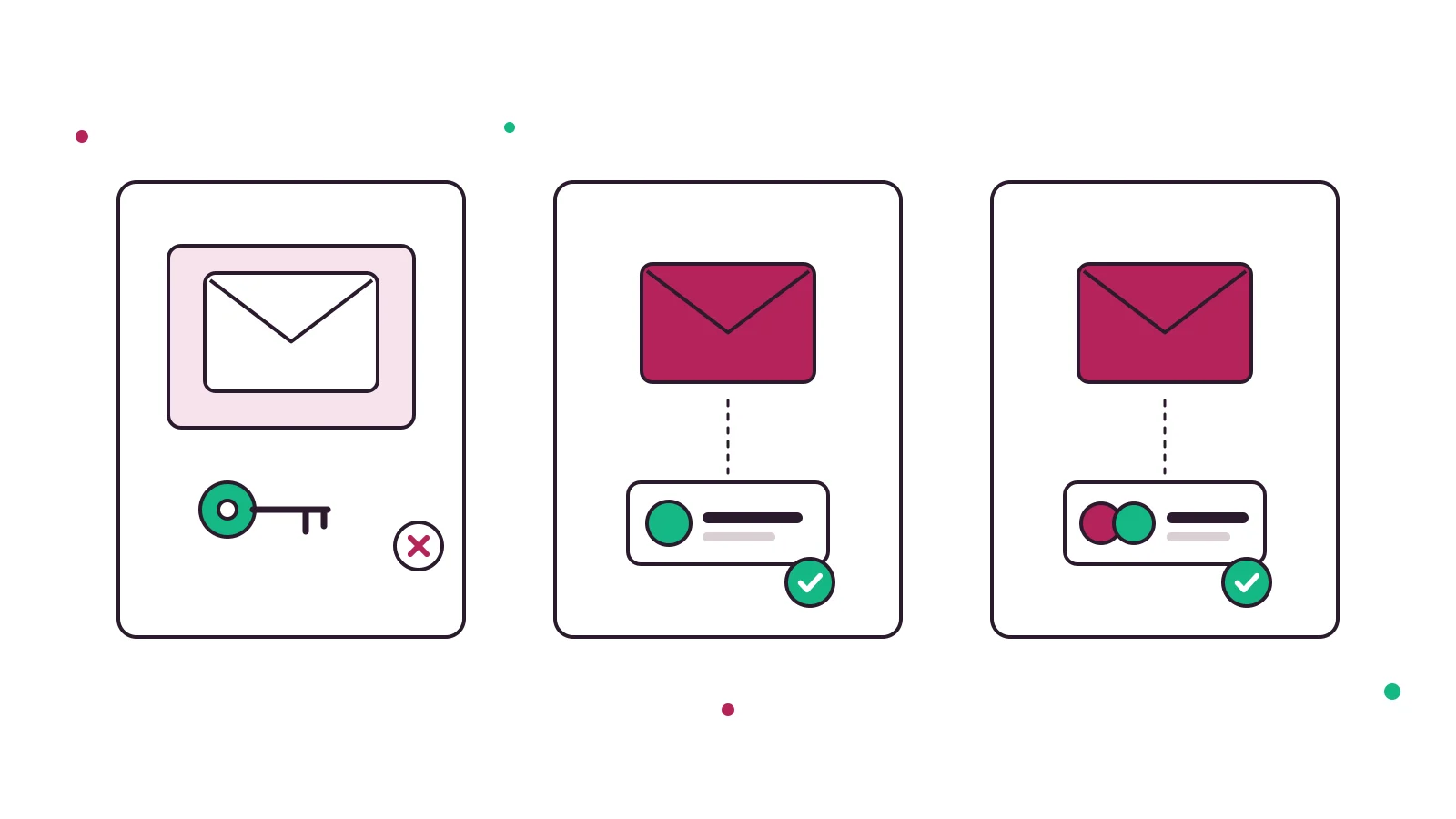
Microsoft's own note is blunt: Full Access and Send As are both required for normal shared mailbox use. You set them in the Exchange admin center under Recipients > Mailboxes, select the shared mailbox, then Edit > Manage mailbox delegation.
Pro tip: assign permissions to people one by one, not to a security group. Microsoft explains that automapping (Outlook adding the mailbox for you automatically) is set on each user's mailbox, so it does not work when access comes through a group. Groups are tidier for admins, but every member then has to add the mailbox by hand.
For customer support, we lean toward Send As. Customers reply to the shared address either way, and a consistent "Support" sender reads as one team. Send on Behalf is useful when you want accountability visible in every email, for example in finance or HR mailboxes.
How to add a shared inbox to Outlook on every version
Once you are a member, start with the easy path. Close Outlook completely and open it again. If automapping is on (Microsoft says it is on by default), the shared mailbox appears in your folder pane. If you were added a moment ago, give it a few minutes and restart again.
If it still is not there, use the manual steps for your version below. Not sure which Outlook you have? Microsoft's tip is simple: if the new Outlook steps do not match what you see, you are probably on classic Outlook, so follow those steps instead.
New Outlook for Windows
- Select Mail in the navigation pane.
- In the folder pane, right-click your account name and select Add shared folder or mailbox.
- Type the shared address, for example support@yourcompany.com, and confirm.
- Look for the Shared with me folder in the folder pane. Your shared mailbox sits inside it, with its own Inbox, Drafts and Sent Items.
Microsoft notes you can add the mailbox at any time, but it only works once your admin has made you a member. Contacts for shared mailboxes are not available in new Outlook yet, and some features, such as notifications, unread count and rules, need the shared mailbox added as a full account rather than as a folder.
Classic Outlook for Windows (Microsoft 365, 2016 to 2024)
- Select File > Account Settings > Account Settings.
- On the Email tab, highlight your own account and choose Change.
- Choose More Settings > Advanced > Add.
- Type the shared address and choose OK > OK, then Next > Finish > Close.
The shared mailbox now shows in your folder pane. Microsoft adds that once you are a member and restart, its calendar joins your calendar list and its contacts appear under My Contacts in People.
Outlook on the web
Outlook on the web gives you two ways to open it:
- Inside your own mailbox: right-click Folders in the left pane, choose Add shared folder or mailbox, type the address and confirm. It stays in your folder list each time you sign in.
- In its own browser window: select your name on the navigation bar, choose Open another mailbox, type the address and select Open.
The second option has a practical advantage. Microsoft says that to get notifications for new messages in the shared Inbox on the web, you must open it in a separate window. If your team works from the browser and misses new mail, this is usually why.
Outlook for Mac
Outlook for Mac does not support automapping, so Mac users always add the mailbox by hand:
- Open Tools > Accounts and select the account that has access.
- Select Delegation and Sharing, then the Shared With Me tab.
- Click + and add the shared mailbox.
You can also go to File > Open > Shared Mailbox. Microsoft adds two cautions: Outlook for Mac currently supports only Full Access for shared mailboxes, and the shared address appears in your From list even if you lack Send As or Send on Behalf, in which case your message will not be sent. Microsoft also states that support for legacy Outlook for Mac ends in October 2026.
Outlook for iPhone and Android
- Sign in to your own account in the Outlook app.
- Tap Add Account in the left pane, then Add a Shared Mailbox.
- If you have several accounts, pick the one with access.
The shared mailbox then shows in your account list. This works when both your mailbox and the shared one are in Exchange Online. To remove it, go to Settings > Accounts, tap the mailbox and choose Delete Account.
Quick reference
| Outlook version | Automatic after restart? | Manual path |
|---|---|---|
| New Outlook (Windows) | Yes, if automapping applies | Right-click account > Add shared folder or mailbox |
| Classic Outlook (Windows) | Yes, if automapping applies | File > Account Settings > Change > More Settings > Advanced > Add |
| Outlook on the web | Not applicable | Right-click Folders > Add shared folder or mailbox, or Open another mailbox |
| Outlook for Mac | No, automapping not supported | Tools > Accounts > Delegation and Sharing > Shared With Me > + |
| Outlook mobile | No | Add Account > Add a Shared Mailbox |
Source: Open and use a shared mailbox in Outlook, Outlook for Mac guide, Add a shared mailbox to Outlook mobile.
Sending and replying from the shared mailbox
Adding the mailbox only gets you halfway. The classic slip is replying from your personal address by accident, which splits the conversation and leaves teammates blind.
In new and classic Outlook: start a new email and look for the From field. If it is missing, turn it on (new Outlook: Options > Show From; classic: Options > From). Select From, choose the shared address or pick Other email address and type it. After the first time, the address stays in your From list. When you reply to a message that sits in the shared mailbox, the From field should already show the shared address, so just check it before you hit Send.
In Outlook on the web: open a new message or reply, select ... > Show From, right-click the current From address and choose Remove, then type the shared address. The web app remembers it next time.
Automatic replies (out-of-office style messages from the shared address) can only be set up by your Microsoft 365 admin, according to Microsoft's support article.
Key takeaway: Full Access lets you see the shared inbox. Send As or Send on Behalf lets you answer from it. If people can read but not send, the fix is a permission, not a reinstall.
A shared inbox also works better with shared wording. If your team answers the same ten questions every week, our customer service email guide and the free customer service email template generator help you agree on replies that sound like one team.
Shared mailbox not showing in Outlook? Fixes that work
When someone says "I can't add the shared inbox to Outlook", it is almost always one of these five causes.
1. The permission is brand new
Microsoft says new members may need to wait a few minutes, then restart Outlook. If you get "You do not have the permission to send the message on behalf of the specified user" right after setup, Microsoft attributes it to replication delay across data centers and says it usually clears in about an hour.
2. Access was granted through a security group
Automapping only works for individuals with direct permissions. Microsoft's permissions article says it does not work for any kind of group. Either assign Full Access per person or have each member add the mailbox manually using the steps above.
3. The mailbox is hidden from the address list
If an admin hid the shared mailbox from the Global Address List, Microsoft says Send As and Send on Behalf do not work in the Outlook desktop client, and a delegate with Full Access will not be able to open it. Unhide it, or use Outlook on the web.
4. Outlook opens slowly because of too many mailboxes
The opposite problem. Outlook automatically maps every mailbox you have Full Access to, which can slow startup for admins with access to many mailboxes. Microsoft's automapping guide fixes it in Exchange Online PowerShell: remove the Full Access permission with Remove-MailboxPermission, then add it back with Add-MailboxPermission ... -AccessRights FullAccess -AutoMapping $false.
5. You are on a Mac or on mobile
Neither supports automapping, so nothing appears after a restart. That is expected. Add it manually.
Pro tip: if one person can see the mailbox and another cannot, compare how each got access before you rebuild anyone's Outlook profile. Given how automapping works, "one via a group, one direct" is the first thing we would check.
When a shared inbox outgrows Outlook: ticketing options
Here is the honest part. A shared mailbox is a fine starting point for two or three people. It costs nothing extra, everyone already knows Outlook, and setup takes minutes. We would not push a three-person team that gets twenty emails a day toward new software.
The cracks show as volume grows, and they are structural, not settings you can fix:
- No owner. Two people open the same email, both reply, or neither does because each assumes the other will.
- No status or priority. Flags and categories help, but they are personal habits, not a shared workflow.
- No response targets. Nothing tells you an email has waited six hours.
- Deletion cannot be restricted, per Microsoft, so one tidy-up can erase history.
- A hard ceiling of 25 users.
That is why people search for an Outlook ticketing system. A ticketing system (software that turns each email into a trackable ticket with an owner, a status and a deadline) solves exactly the gaps above. The usual pattern is to keep your address and forward the shared mailbox into a help desk. One catch worth knowing before you try: Microsoft 365 controls automatic forwarding to outside addresses through outbound spam policies, and Microsoft says the default setting changed in 2021 to disable it for new organizations. Your admin may need to allow forwarding before any help desk receives mail.
| Outlook shared mailbox | Help Scout | Front | Kora Reply | |
|---|---|---|---|---|
| Extra cost | None beyond Microsoft 365 licenses | Free plan (5 users, 1 inbox); Standard from $25 per user per month | No free plan (14-day free trial); Starter $25 per seat per month billed annually, up to 10 seats | Free plan for 2 users; see pricing |
| Assignment and status | Manual, with flags and categories | Yes | Yes | Yes |
| User limit | 25 | Up to 25 users on Standard | Up to 10 seats on Starter | Plan based |
Competitor prices from their official pricing pages, checked October 25, 2026: Help Scout, Front. Prices change, so re-check before buying.
If you want to compare these more closely, we keep side-by-side pages for Help Scout alternatives and Front alternatives, and a broader roundup of the best help desk software. On a tight budget, start with our list of free ticketing systems.
Kora Reply is a new product, so we will keep the pitch short. You forward your shared mailbox to a Kora Reply address, and each email becomes a ticket in a shared inbox with ticket status, priority and assignment, internal notes and response targets. An AI agent can answer routine questions from your knowledge base and hand the rest to a person with a summary. It is built for small businesses, it does not have the integrations or track record of older tools, and it is not a replacement for Outlook if all you need is one address for three people.
Frequently asked questions
Usually because the permission is new or was granted through a security group. Microsoft says a new member may need to wait a few minutes, then close and restart Outlook. Automapping only works when Full Access is assigned to you directly, not through a group. If it still does not appear, add it manually: in new Outlook right-click your account and choose Add shared folder or mailbox; in classic Outlook use File > Account Settings > Change > More Settings > Advanced > Add.
The shared mailbox itself does not need a license up to 50 GB of data. Each person who opens it needs their own licensed Exchange Online mailbox. A license on the shared mailbox is only needed for more than 50 GB, in-place archiving or litigation hold.
Microsoft documents a maximum of 25 users per shared mailbox. Beyond that, people may see connection failures or duplicated messages, and Microsoft suggests a Microsoft 365 group instead.
Yes. Go to Tools > Accounts, select your account, choose Delegation and Sharing, open the Shared With Me tab and click the plus button. You can also use File > Open > Shared Mailbox. Outlook for Mac does not support automapping and currently supports only Full Access permissions for shared mailboxes.
Full Access lets you read the mailbox but not send from it. You also need Send As or Send on Behalf. If you were just added, Microsoft says the error can come from replication delay and usually clears in about an hour.
No. Only people inside your Microsoft 365 organization can be members of a shared mailbox. For outside collaborators Microsoft points to a Microsoft 365 group instead.
Not really. It gives everyone one inbox, but it has no ticket owner, status, priority or response target, and Microsoft notes you cannot stop members from deleting messages. Teams that need those things usually forward the shared address into a help desk.
Final thoughts
To add a shared inbox to Outlook, get the admin side right first: create the shared mailbox, give each person Full Access plus Send As directly rather than through a group, then restart Outlook. Use the manual path on Mac, mobile, or whenever automapping does not kick in. For a small team with modest volume, that setup may be all you ever need.
When emails start slipping through, double replies become common, or you need to know who owns what, it is time to look at a help desk. If that moment has arrived, you can try Kora Reply's email ticketing on the free plan and keep your existing address.
Sources
All pages fetched on October 25, 2026.
- About shared mailboxes in Microsoft 365 (Microsoft Learn)
- Create a shared mailbox (Microsoft Learn)
- Open and use a shared mailbox in Outlook (Microsoft Support)
- Open a shared Mail, Calendar or People folder in Outlook for Mac (Microsoft Support)
- Add a shared mailbox to Outlook mobile (Microsoft Support)
- Manage permissions for recipients in Exchange Online (Microsoft Learn)
- How to remove automapping for a shared mailbox in Outlook (Microsoft Learn)
- Compare types of groups in Microsoft 365 (Microsoft Learn)
- Control automatic external email forwarding from cloud mailboxes (Microsoft Learn)
- Help Scout pricing
- Front pricing
Related articles
 Support skills
Customer Service Email: Write Replies That Solve Problems
How to write a customer service email that fixes the problem in one reply: structure, tone, response times, and 6 email customer service examples to adapt.Read article Ticketing